A little guidance.
More exploring.
Find your places, choose your view and understand what your Watch is showing.
Compatibility: the current Beta build targets watchOS 10 or later. Final TestFlight device eligibility will be shown by Apple when invitations open.
Map & places
How do I use Monitoring Map?
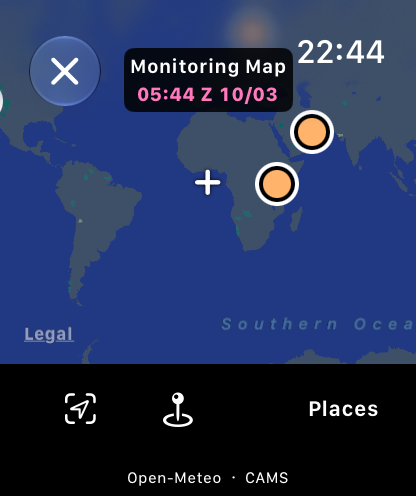
Open Options → Monitoring Map. Drag the map to move it and turn the Digital Crown to zoom. Tap a saved place marker to open its current conditions. A numbered group represents several places; tap it to zoom in.
How do I add a place?
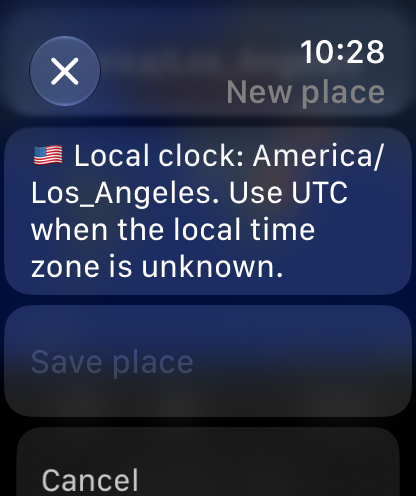
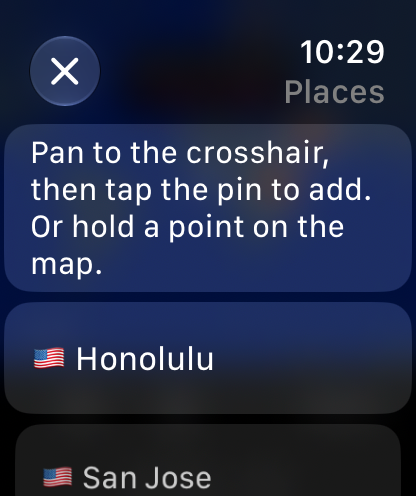
Move the map until the desired point is under the center crosshair, then tap the pin button. Alternatively, hold the desired point on the map. In New place, check the name and time zone, then choose Save place. A nearby-name suggestion does not move your selected coordinates. The Beta supports up to 12 places; saving another is unavailable at the limit.
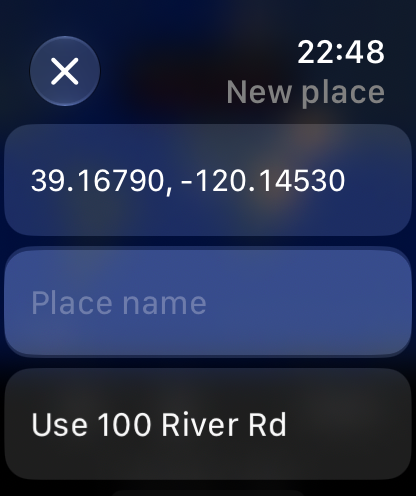
Scroll in the editor to review the time zone and reach Save place. Enter a place name before saving; Save place is disabled while the name is empty, as in this example.
How do I edit or delete a place?
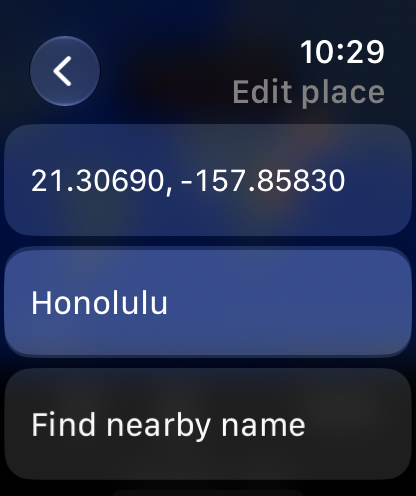
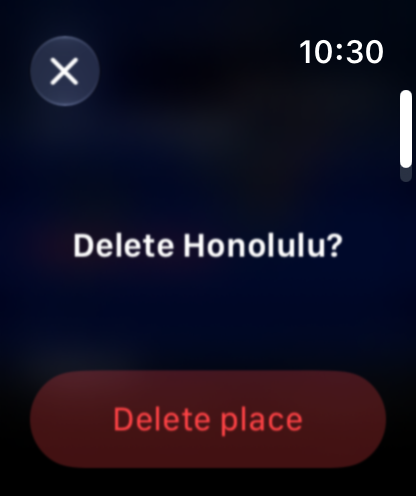
Open Monitoring Map → Places and select the saved place. Edit its name or time zone and choose Save changes. To remove it, choose Delete place and confirm the named place. Cancel leaves the editor without saving the pending changes. On the deletion confirmation, × cancels the deletion.
How do I switch places without using the map?
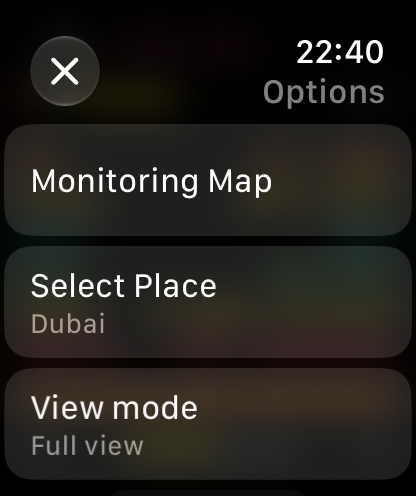
Open Options → Select Place and choose a saved place.
How do I change the place order?
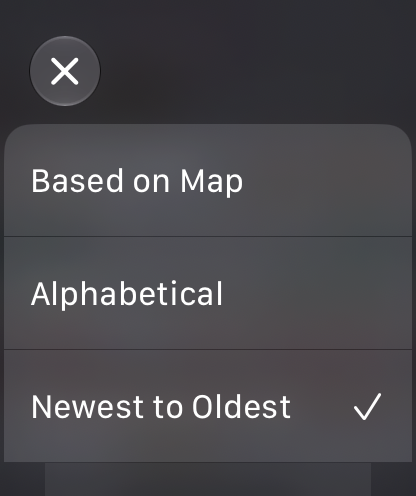
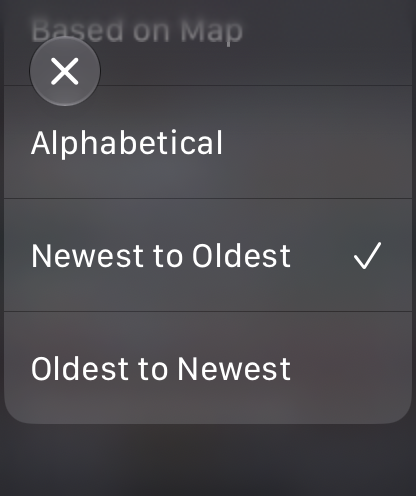
Open Options → Sort. Based on Map orders places west to east by longitude. Alphabetical orders them by name. Newest to Oldest and Oldest to Newest use the order places were added. These are sorting choices, not manual drag-and-drop ordering or sorting by the freshness of weather data.
Views & appearance
What do Full and Action views do?
Choose Options → View mode → Full view or Action view. Action gives a compact summary. Tap its card to open Full view; swipe left on the Action summary for its forecast and right to return. Full view provides navigation between Details, current conditions and forecast. Sailing and Hiking are future concepts, not selectable current modes.
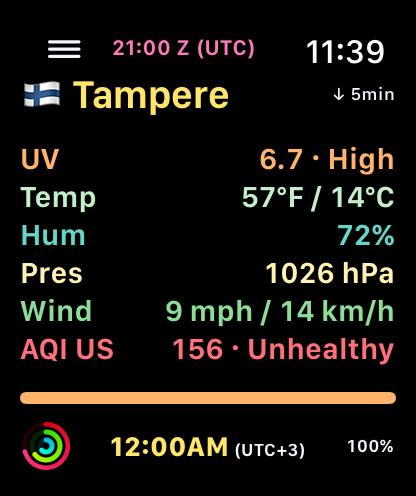
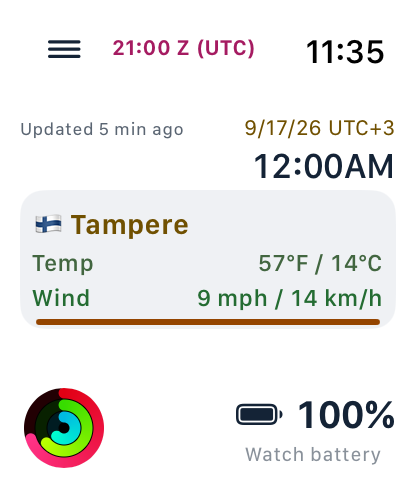
How do I change the background?
Open Options → Background color and choose Black or White.
Updates & offline data
What happens when my Watch is offline?
When available, previously saved readings remain visible. “Offline · saved data” means you are seeing saved information; check its displayed age before using it. “Offline · no saved data” or “No data” means there is no usable reading. “Partial / cached” means some information may be missing or older.
Reconnect your Watch and use Options → Refresh data when an update is available. The Beta’s 15-minute limit still applies; reconnecting does not guarantee an immediate update or refresh every place together. Follow any retry or recovery message shown by the app. Missing data does not mean zero or safe conditions.
Why does Refresh data not always show 0 minutes?
Refresh data requests an update subject to the Beta's 15-minute limit for each place and source. It does not bypass that limit or guarantee that every saved place updates together. Different places can show different data ages. Background behavior depends on watchOS. Use the status message and displayed data age to understand the result.
Feedback & app information
Where do I send feedback and find version or license information?
Options → Feedback opens the report form. Describe your steps, expected result and actual result; avoid unnecessary personal or health details. Options → Current version shows the version/build. Options → Sources & Licenses contains the application notice and data/source acknowledgements. Options → Done closes Options.
Use Add text to write up to 2,000 characters. Included details lets you review the app/device information and handling notice before sending. Scroll down to Send and read the resulting status. A pending submission may offer Check status or Retry same message; check its status before composing a duplicate.
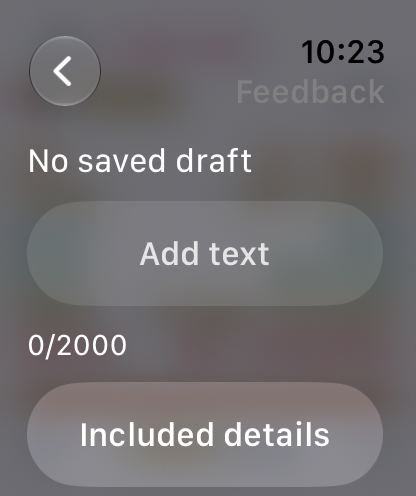
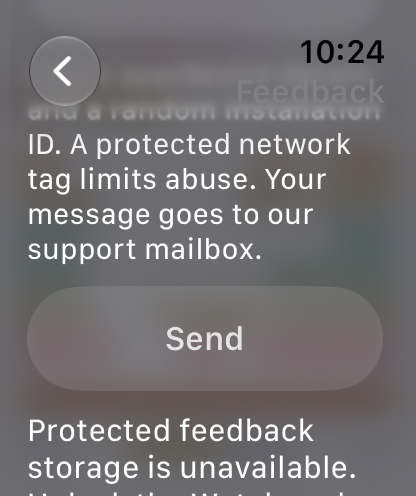
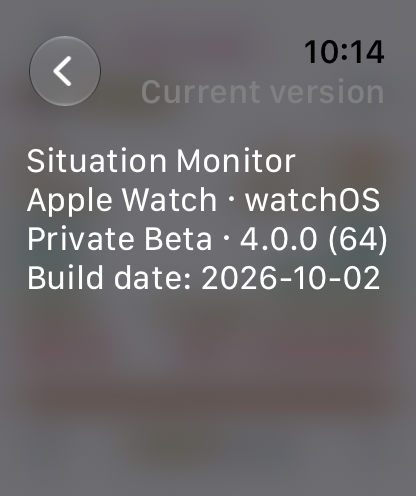
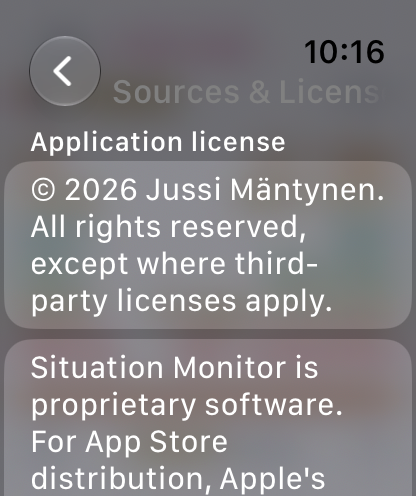
These feedback images show the unmodified simulator UI. Protected feedback storage is unavailable in this simulator, so Add text and Send are disabled. No feedback was sent for these captures. On the Watch, follow any unlock/retry guidance shown by the app.
Details & forecast
How do I move between the data views?
In Full view, swipe right from current conditions for Details and left for the forecast. In Action view, swipe left for its forecast; swipe right to return to the summary. Tap the Action card to open Full view.
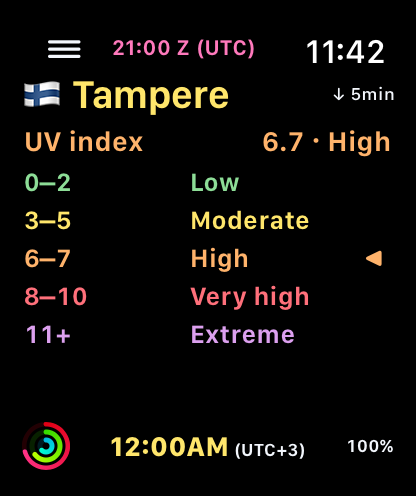
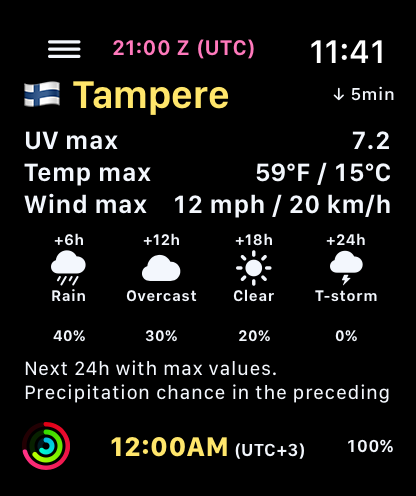
What do the readings and forecast labels mean?
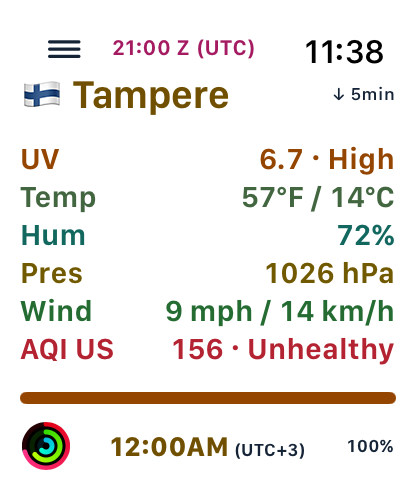
- UV
- Ultraviolet index.
- Temp
- Temperature shown in Fahrenheit and Celsius.
- Hum
- Relative humidity, as a percentage.
- Pres
- Mean-sea-level pressure, in hPa.
- Wind
- Wind speed, shown in mph and km/h.
- AQI US
- Air quality on the US AQI scale.
Details provides scales and explanatory notes. The combined indicator is an app-specific summary, not an official warning.
The forecast shows +6h, +12h, +18h and +24h points. The percentages are precipitation probabilities, not rainfall amounts. Forecast maxima refer to hourly values in the following 24 hours. The displayed download age is not the age of the weather model. Missing values must not be interpreted as zero.
Place time uses the selected place’s time zone. Zulu (Z) means UTC; the clocks depend on your Watch’s clock.
What about Activity, battery and current location?
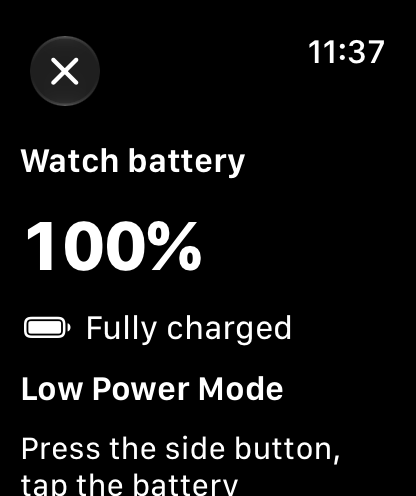
In Full and Action views, tap the Activity icon at the bottom left for Today's activity, or the battery percentage at the bottom right for Watch battery. Scroll to read the panel and close it with × or Done.
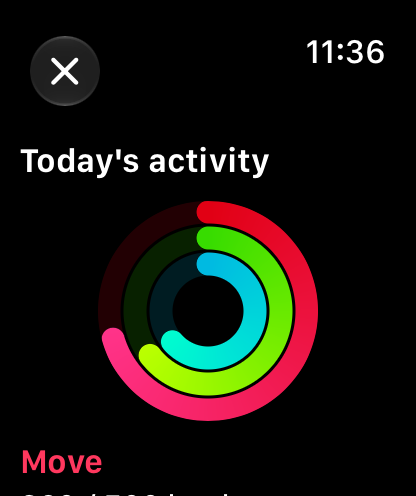
Activity: Move, Exercise and Stand show today’s totals and goals using your Watch’s local day, regardless of the selected city. If no summary is available, choose Enable activity and review the system permission prompt. No data can also mean that there is no summary for today. Refresh activity requests a new reading. Stop showing activity stops the display but does not revoke the system permission. The summary stays on your Watch and is not uploaded.
Battery: shows your Watch’s percentage and charging state. The panel explains how to turn on Low Power Mode in watchOS; it does not turn it on for you. A ~ marks an older reading, and —% means that no reading is available. Wake the Watch to refresh an older reading.
Current location: on Monitoring Map, tap the location control at the bottom left. If watchOS asks for access, review its prompt. If access is off, you can enable it in Settings or keep choosing places manually on the map. The map screenshot above identifies the control; permission dialogs vary with the system’s current permission state.
Send feedback from your Apple Watch.
- Open Situation Monitor on your Apple Watch.
- Open Options → Feedback.
- Tell us what you did, what you expected and what happened.
Your app and device version information is included automatically. Please avoid passwords and unnecessary personal, location or health information.
If you cannot open the app, contact feedback@getsituationmonitor.com. Describe the problem and include your app/build version if known. This opens your email app; this website does not collect or send a message.
For website visits and email support, see the website privacy notice.